
Step 3: Camera Setup#

This section describes the procedure to configure and test the industrial camera of the FlexiVision One system. Correct camera configuration is essential to guarantee acquisition of high-quality images.

Note

Prerequisites

Before proceeding, make sure that:

  • the camera has been installed mechanically at the correct distance

  • the camera Ethernet cable is connected to the VisionController

  • the camera is powered, through PoE or external power supply

  • the FlexiBowl is configured and the backlight is working, for acquisition tests


Accessing Camera configuration#

1

From the main software page, click ../../../_images/tasto_setup1.png

2

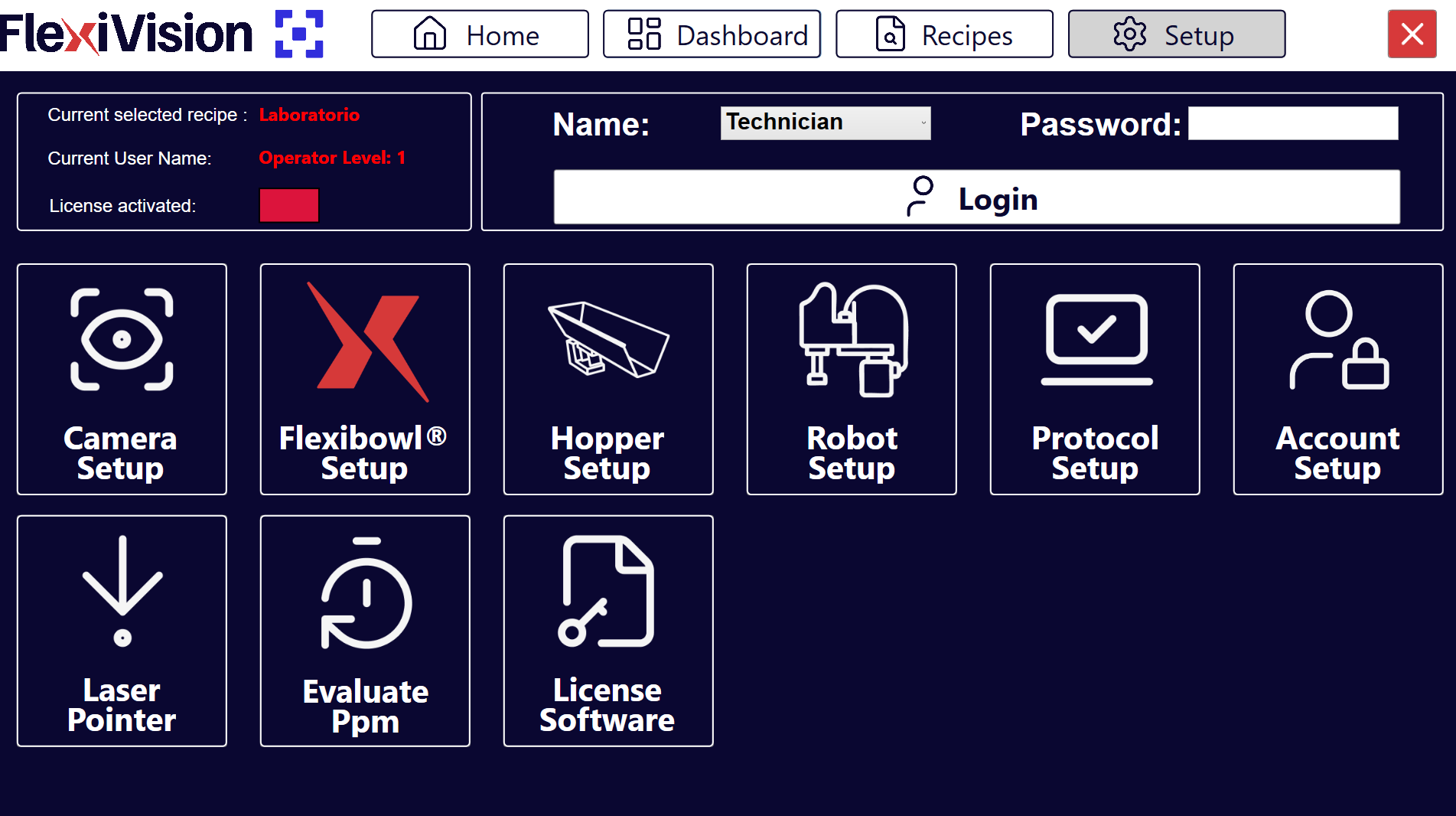
In the SETUP page, locate and click the Camera Setup icon

Setup page

Setup page

3

The camera configuration page opens


Camera Setup interface overview#

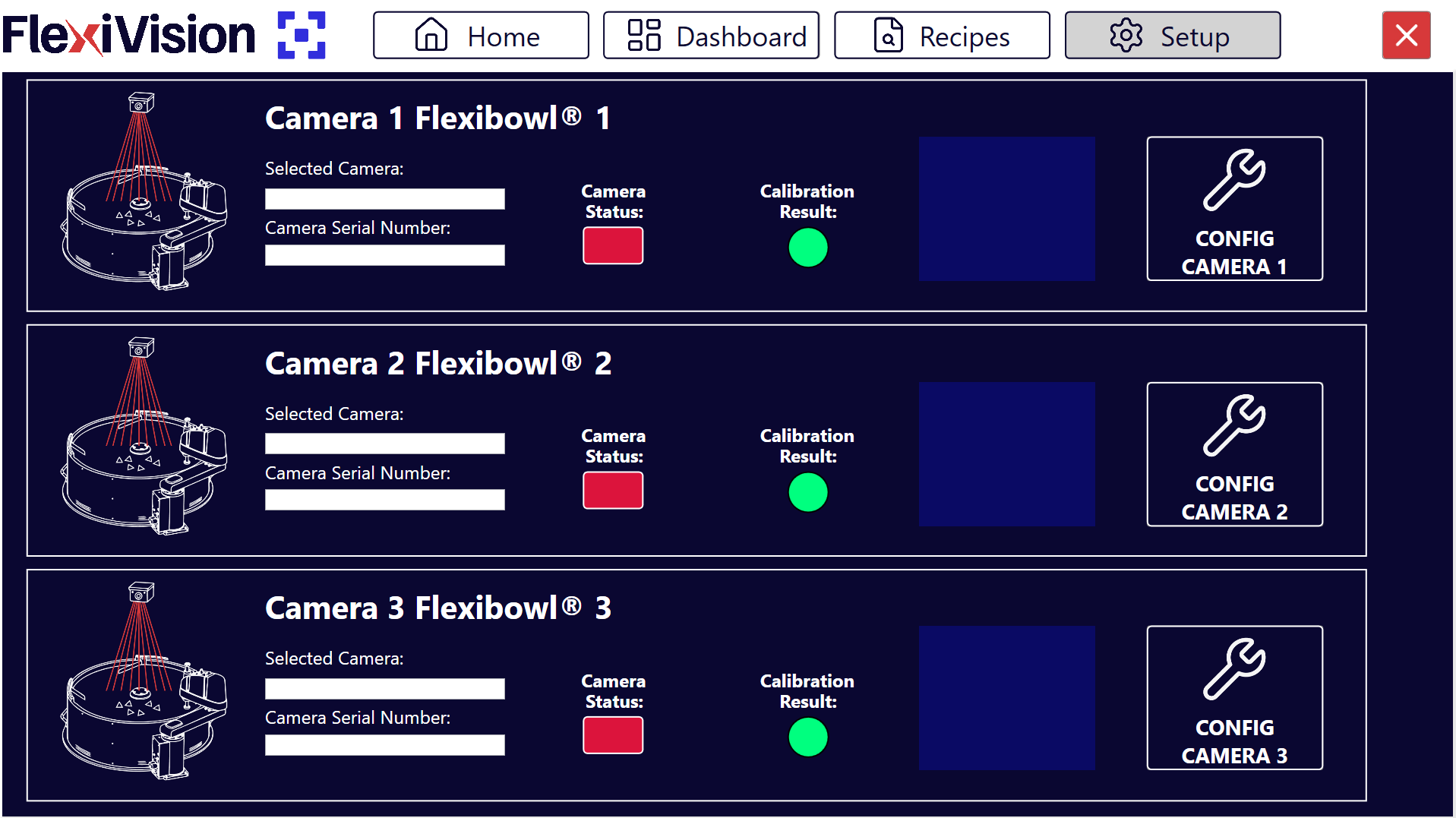
The Camera Setup page includes three main information panels and one configuration area:

Camera Setup page

Section

Description

Selected Camera

Shows the identification of the currently selected camera

Camera Serial Number

Displays the unique serial number of the connected camera

Status

Indicates connection status

Calibration Result

Shows the result of camera calibration

Config Camera

Button used to open the detailed configuration page


Configuration procedure#

Note

For consistency and convenience, it is recommended to match camera numbering with the corresponding FlexiBowl:

  • ✅ Camera installed above FlexiBowl 1: CAM-CIC-5000-20G-12345 -> select Camera 1 FlexiBowl 1 and then select CAM-CIC-5000-20G-12345 under Image Acquisition Device

Configuration access

  1. Click Config Camera X, where X is the camera number

  2. The first page of the calibration wizard opens, where the Cam Exposure parameter can be modified

Advanced mode activation

  1. Click Expert in the lower right corner

  2. This mode provides access to all advanced camera settings required during initial configuration

Image acquisition device configuration

  1. In the Expert panel, click Image Acquisition under Settings

  2. Click Image Acquisition Device

  3. A selection menu opens with the available acquisition devices

Specific camera identification

  1. From the device list, select the desired camera

    • search the list by serial number or camera model

    • example: CAM-CIC-5000-20G-XXXXX, where XXXXX is the serial number

  2. Click the camera to select it

Tip

How to identify the correct serial number

If multiple cameras or devices are listed:

  • the serial number is printed on a label on the physical camera

  • compare the last group of characters in the serial number to identify the correct camera

  • if in doubt, temporarily disconnect other cameras to identify the one in use

Video format selection

  1. Click Video Formats

  2. From the list of available formats, select Generic GigEVision

  3. Select Mono, monochrome, as the sensor type

Warning

Correct format is mandatory

It is essential to select Generic GigEVision Mono:

  • other formats may not work or may generate errors

  • color formats are not compatible with this camera

  • if the format is not available, required drivers or system settings may be missing

Acquisition system activation

  1. After selecting the correct format, click Initialize Acquisition

  2. Wait a few seconds for initialization to complete

Acquisition verification

  1. Locate the Run button in the top left of the interface, play icon

  2. Click Run repeatedly, 5-10 times, to acquire test images

  3. Observe the image display area:

    • it should show the camera view of the FlexiBowl

    • the image should update every time Run is pressed

Warning

Diagnosis of a completely blue screen

If, during testing, the acquired image appears completely blue even once:

Cause: GigE communication problem, network latency or packet size not optimized

Solution:

  1. From the top menu, select GigE or GigE Vision Settings

  2. Modify the following parameters:

    • Latency Level

    • Packet Size

Proceed with the next steps for optimal configuration of these parameters.


Latency Level#

Note

Latency adjustment

The Latency Level parameter controls the communication buffer between the camera and the VisionController.

Typical values:

  • default value: 0

  • available range: 0-3

How to adjust it:

  1. Increase the value gradually

  2. After each change, test acquisition using the Run button 5-10 times

  3. If blue screens no longer appear, the value is correct

  4. If blue screens persist, increase it further or try adjustments to Packet Size

Packet Size#

Note

Packet Size adjustment

The Packet Size parameter defines the size of the data packets transmitted over the Ethernet network.

Typical values:

  • default value: 8164 bytes

How to adjust it:

  1. Reduce the value gradually, 8000, 7000, and so on

  2. After each change, test acquisition using the Run button 5-10 times

  3. If blue screens no longer appear, the value is correct

  4. If blue screens persist, reduce it further or try adjustments to Latency Level


Final verification and saving

  1. Click Run at least 2-3 times consecutively

  2. Verify that:

  • no image appears completely blue or black

  • images update regularly

  • the FlexiBowl surface is clearly visible

  • illumination is uniform

  1. If all tests are positive, the configuration is correct


Camera Calibration#

Calibration is the crucial step that establishes the exact geometric relationship between the real world, coordinates in millimeters, and the image acquired by the camera, coordinates in pixels. Without accurate calibration, the precision of the picking system is compromised, making the entire application unreliable.

Warning

Calibration must be repeated every time the position of the camera and or the robot is changed.

Tip

It is not necessary to recalibrate if only the position of the FlexiBowl is changed.


Why calibration is necessary#

Calibration is necessary because every sensor and lens combination introduces specific alterations into the image. Its main goal is to correct these distortions.

Types of optical distortion#

Types of optical distortion

Step 1: Calibration grid#

Error

Make sure that:

  • the backlight is on

  • the TopLight is off

The dedicated ARS calibration grid must be positioned on the FlexiBowl:

0

If present, remove the diverters mounted on the FlexiBowl.

1

Loosen the four screws of the central FlexiBowl flange

2

Rotate the central flange slightly counterclockwise and remove it

3

Carefully lift and remove the surface

4

Position the ARS grid on the FlexiBowl, aligning the positioning pins with the predefined holes

Calibration grid positioning

Correct positioning of the ARS calibration grid on the FlexiBowl#

Attention

The calibration grid must be positioned at the same height as the object used in the application.

For this reason, the grid is supplied with spacers that must be inserted in the grid pins before installation on the FlexiBowl. They are used to raise the grid up to the part height, ensuring accurate calibration.

Spacers

../../../_images/altezzacalibrazione.png

Step 2: Basic adjustments#

5

Open Camera SETUP from SETUP

6

Click the Config Camera button for the corresponding camera

7

Click EXPERT from the Camera FLB page

8

Set the camera to live display mode

  • activate continuous image display before adjusting the aperture

9

Set the iris aperture

  • slightly loosen the screw of the upper ring on the camera lens

  • rotate the ring while observing the live image until the correct amount of light enters the camera

  • tighten the screw of the upper ring

../../../_images/Esp_Corretta.png

10

Adjust camera focus manually

  • slightly loosen the screw of the lower ring

  • rotate the ring slowly while observing the live image

  • when the pattern appears sharp, focus is correct

  • tighten the lower-ring screw

  • close the screen

../../../_images/Fuoco_Corretto.png

11

Click Back

Warning

Pay attention to depth of field

Focus must guarantee sharpness over the entire FlexiBowl surface, not only in the center.

If the center is sharp but the edges are blurred:

  • verify that the optics are clean

  • verify that the working distance is correct

  • verify that the camera is perfectly parallel to the plate

  • close the iris slightly to increase depth of field

If the problem persists, the mechanical installation of the camera may need to be reviewed.

Error

If, by clicking RUN multiple times, even once you see a completely blue screen, refer to Camera Calibration Troubleshooting

12

Adjust camera exposure

  • In the Camera FLB x page, locate the Cam Exposure parameter

  • Adjust Cam Exposure and click TEST, repeating until correct image exposure is obtained:

    • grid pattern clearly visible

    • high contrast between black and white squares

    • no burned white areas

    • no underexposed image

13

Click NEXT

Example of correct exposure

Example of correct exposure: high contrast, well-defined pattern, no burned areas#

Tip

Exposure optimization

The higher the exposure time, the more light enters the optics.

  • Time too short: image dark, pattern poorly visible

  • Time too long: image overexposed, detail lost

  • Optimal time: maximum contrast without saturation

Step 3: Camera calibration#

14

Verify that the grid is centered, sharp, and fully visible before acquiring the calibration image.

15

Click Grab Image Calib to capture the calibration grid image.

Visually verify that:

  • the entire grid is visible

  • the pattern is sharp

  • there are no shadows or reflections

16

Set both Tile Size X and Tile Size Y to 10

17

Click Calibrate

18

Evaluate calibration quality

The Result Calibration parameter will return:

🟢 Excellent: excellent calibration, optimal precision

🟠 Acceptable: acceptable calibration, good but not optimal precision

🔴 Bad: poor calibration, insufficient precision, must be repeated

Important

Accept only Excellent calibrations. Other results compromise the entire application.

Note

Acceptance criterion

A satisfactory result includes correct aperture, correct focus, and the best exposure setting for the application.

Warning

Errors during calculation

If calibration fails:

Possible causes

  • pattern not detected, image too dark or overexposed

  • grid squares partially obscured

  • excessive distortion, camera too close or too far

  • incorrect Tile Size value

Solution

  • verify and improve image quality

  • make sure the entire grid is visible and well illuminated

  • verify the Tile Size value

  • repeat image acquisition and try again


When calibration must be repeated#

Recalibrate when

first system setup, mandatory. After changing camera position. After moving the robot. If systematic picking errors are detected.

Recalibration is not necessary when

part type changes while FlexiBowl and camera remain the same. Lens focus or aperture is adjusted. Only the recipe changes. Only recognition parameters are adjusted. Robot programs are updated.


Robot Calibration#

Step 4: Laser mounting#

19

Once excellent calibration quality is achieved, click NEXT.
A window will appear requiring robot calibration before proceeding. Do not click Yes yet and follow the next steps.

20

Mount the Laser Tool with its dedicated support

21

Position the Spacer Bracket (A) under the laser

22

Lower the laser to the level of Spacer (A), so the laser is exactly 3 cm above the calibration grid

../../../_images/spacerbracket.png

23

Remove the Spacer Bracket

24

Turn on the laser

Step 5: Define a 3-point plane#

25

Move the laser to the origin point

26

Move the laser to the end point of the X axis

27

Move the laser to the end point of the Y axis

Step 6: Verify robot trajectory#

28

Bring the laser back to the origin point

29

Move the robot from its teach pendant along the X and Y axes

30

Verify that the correct trajectory is followed: moving only along X and Y, the robot must follow the grid lines correctly

31

Click YES

Step 7: Save the base recipe#

32

Click Recipes

33

Verify that the recipe containing all setup steps and calibration is selected in the left menu, then click Save Recipe

34

This makes it possible to keep all completed steps stored separately, providing a base recipe for all future recipes containing the different models for the calibrated system

35

To continue with model creation, duplicate the base recipe, rename it as desired, and click Edit Recipe. A page listing all available models will open


Common calibration problems#

Pattern not detected#

Warning

Error: “Unable to detect calibration pattern”

Cause: the software cannot identify the grid pattern.

Solutions:

  • increase contrast by adjusting exposure or illumination

  • verify that the entire grid is visible in the image

  • improve focus

  • clean the grid surface, dust or fingerprints may interfere

Calibration always “Bad” or “Acceptable”#

Warning

Insufficient calibration quality

If calibration remains below Excellent despite the adjustments:

  1. Verify the camera-FlexiBowl working distance, which must match the calculated one

  2. Check that the camera is parallel to the FlexiBowl plane and perfectly horizontal

  3. Make sure the camera is stable, no vibration during acquisition

  4. Verify that the lens is fully screwed in

If the problem persists, there may be a mechanical installation issue. Review Mechanical Installation.